|
|---|
|
The Module Library window provides access to thousands of tracker modules from online archives. You can browse, search, download, and play modules directly from within NostalgicPlayer. Downloaded modules are cached locally for offline access, allowing you to build your own personal collection of favorite tracker music.
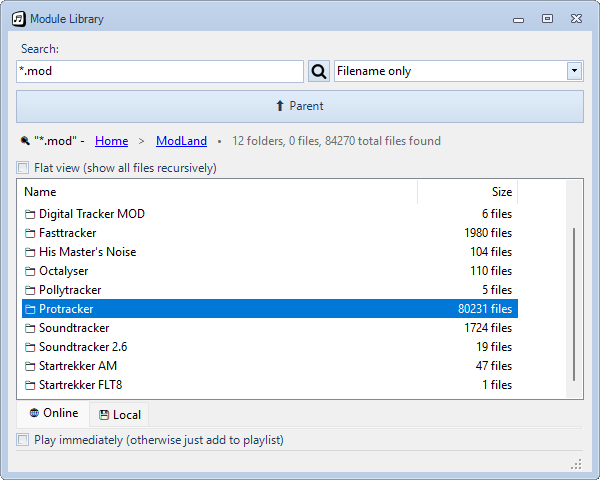
The Module Library has two modes: Online and Local. In Online mode, you browse the remote archive. In Local mode, you browse your locally cached modules. You can switch between modes using the tabs at the top of the window.
Online Mode
In Online mode, you have access to the complete Modland archive containing thousands of modules. The archive is organized hierarchically: first by format (like Protracker, FastTracker 2, ScreamTracker 3, etc.), then by composer/artist within each format.
Important: The Modland archive contains modules in many different formats. Not all formats are currently supported by NostalgicPlayer. If you download a module that cannot be played, you'll receive an error message. Check the supported module types page for a complete list of playable formats.
| Browse by Format |
Navigate through the folder structure by double-clicking folders. First select the format you're interested in (e.g., "Protracker" for MOD files, "Scream Tracker 3" for S3M files), then browse composers within that format. Double-click a module to download and play it. |
| Play Immediately |
When this checkbox is checked, modules will start playing as soon as they finish downloading. Uncheck it if you want to download modules without playing them. |
| Batch Download |
Select multiple modules or folders, then right-click and choose "Download Selected" to queue them all for download. You can even select entire folders to download all modules within them recursively. A progress bar shows download status, and you can cancel anytime using the Cancel button. When downloading more than 10 files, a confirmation dialog will show the total count. With "Play Immediately" checked, the first module starts playing while the rest are queued in the playlist. |
| Database Updates |
When the Modland database is more than 7 days old, an info bar appears at the bottom of the window. You can choose to update now, ignore the warning permanently for this version, or dismiss it for the current session. |
Local Mode
In Local mode, you can browse and manage your locally cached modules. All modules you've previously downloaded are available here, maintaining the exact same folder structure as the online archive (format → composer → modules). The cache is persistent between NostalgicPlayer sessions, so your downloaded modules remain available until you explicitly delete them. This allows you to play modules locally without internet connection and build a personal collection of favorite modules.
| Browse Cache |
Navigate through your cached modules using the same format/composer structure as online. The folder hierarchy is preserved, so modules you downloaded will be in the same path offline. Double-click a module to play it instantly. |
| Play Multiple |
Select multiple modules, then right-click and choose "Add to Playlist" to queue them all. The first module starts playing immediately while the rest are added to the playlist. |
| Favorites |
Right-click on any module or folder and select "Favorite" to mark it as a favorite. Favorites are shown with a star icon. Use the "Favorites only" checkbox to filter the view to show only your favorites. Favorites are stored in a file in your Module Library folder, so they stay with your collection. |
| Reload |
Right-click and select "Reload" to rescan the filesystem. Use this when you've added or removed modules outside of NostalgicPlayer. |
| Delete Modules |
Right-click on any cached module and select "Delete" to remove it from your local cache. This helps manage disk space by removing modules you no longer want to keep. |
Navigation
These features work in both Online and Local mode:
| Breadcrumb |
The breadcrumb bar at the top shows your current path, just like in Windows Explorer. Click on any part of the path to navigate directly to that folder, making it easy to jump back to parent folders. |
| Search |
Use the search box to search within the current folder and all subfolders. The search looks in both folder names and file names. You can navigate into folders in the search results - the search will then continue from that folder. The search mode dropdown (Contains/Starts with/Ends with) controls how the search pattern is applied. |
| Flat View |
Check the "Flat view" checkbox to show all files from the current folder and all subfolders recursively. A Path column appears showing where each file is located. You can click on the Name or Path column headers to sort by filename or folder path. Click again to reverse the sort order. |
Understanding the Search Function
The search looks in both folder names and file names. Use the dropdown next to the search box to control how the search works:
| Contains |
Finds everything that has your search text anywhere in the name. For example, searching for "demo" will find "demo.mod", "my_demo_song.mod", and also folders like "Demo Music". |
| Starts with |
Finds everything that begins with your search text. Searching for "demo" will find "demo.mod" and "demo_song.mod", but not "my_demo.mod". |
| Ends with |
Finds everything that ends with your search text. Searching for "remix" will find "song_remix.mod" and "cool_remix.mod". |
| Finding a Composer |
Simply type a composer's name to find their folder and all modules inside it. |
Tip: To browse all modules of a specific format (like all S3M files), it's more efficient to navigate through the folder structure: open the "Scream Tracker 3" folder rather than searching.
Supported Archives
Currently, the Module Library supports:
- Modland - One of the largest module archives on the internet, containing thousands of modules in various formats
More archives may be added in future updates.
Tips and Tricks
- Use flat view to see all files at once without navigating into each subfolder
- Sort by name or path in flat view to organize your search results
- Browse by format folders to explore all modules of a specific type (more efficient than searching)
- Search for composer names to find all their work across different formats
- Use batch download to grab an entire composer's folder at once
- Download modules while one is playing to build your collection
- The local cache preserves the folder structure, making it easy to find modules you downloaded earlier
- Regularly clean up your cache by deleting modules you no longer need
|